Codex and ChatGPT Work | AI Competency Centre

Codex and ChatGPT Work
The AI Competency Centre site has now moved to OxIntranet. Pages on this site will no longer be maintained but will remain available until November during the transition period.
If you are a member of University staff, please visit Generative AI support (SSO required) for all the latest information about using generative AI at Oxford. Resources for current students can be found on OxWeb. If you are visiting from outside of the University, we are currently refreshing the AI content on our main website.
Table of contents:
On the July 9 2026, the Codex app was renamed to the ChatGPT app. The app previously known as the ChatGPT app can still be accessed as ChatGPT Classic. To be granted access to the ChatGPT app at Oxford, you must complete the ChatGPT App Consent form.
Using the ChatGPT desktop app, you can access AI coding agents from OpenAI through ChatGPT Work and Codex. These are Oxford's enterprise AI coding agents, unlike ChatGPT, which responds to questions and generates text, ChatGPT Work and Codex can read, write, and execute work directly on your files and digital environment in response to plain text language.
ChatGPT work cannot be accessed in the browser.
Use of agentic features within the ChatGPT app at Oxford counts against your ChatGPT Edu weekly usage limits. More information about these can be found on the ChatGPT Edu webpage.
What Codex and ChatGPT Work Do Best
File organisation and bulk processing - Sorts, renames, and restructures large numbers of files automatically
Data transformation - Combines, cleans, and reformats spreadsheets and CSV exports across multiple sources
Document extraction - Pulls specific fields from large batches of PDFs and compiles them into a summary report
Code writing, editing, and debugging - Supports a wide range of programming languages and development tasks
Automating repetitive digital tasks - Handles routine workflows across your files and tools
You do not need to be a programmer to get value from ChatGPT Work and Codex. However, because ChatGPT Work and Codex take real actions on real files — rather than just responding with text — they carry a higher risk profile than ChatGPT, and require careful use. See the Working safely with Codex guidance below before you begin.
Our team have created a short self-service Canvas course on Getting Started with Codex and ChatGPT Work.
When logging in with an Oxford SSO, all current University staff will join the University of Oxford Edu workspace. The features available in this workspace will be subject to internal governance based on business need.
ChatGPT Work capabilities
ChatGPT Work can gather information across your apps and workflows, work on local files on your local device, and acts very similarly to Codex Local.
Codex capabilities
Codex covers several different capabilities and the ones currently enabled are as below:
Codex Cloud / Web Codex Cloud is accessible at https://chatgpt.com/codex or by clicking the Codex button in the left sidebar when on https://chatgpt.com. Using Codex Cloud, users can connect to a GitHub repository, and ask in natural language to make changes. Codex Cloud will not make changes directly to the codebase but let the users create create pull requests with suggested changes in the associated GitHub repository.
Codex Local Codex Local can be accessed via the ChatGPT app on macOS and Windows. It enables parallel workflows, multi-agent orchestration, project management features (including worktrees and Git support), and long-running tasks across projects.
Codex CLI This is a coding agent that software engineers can access through the terminal using a command line interface. Users can download the tool from the link, and login using their ChatGPT Edu account. This still uses natural language interactions to allow users to make changes to code. Unlike the Codex Cloud, you do not have to explicitly connect to a GitHub repository. This tool has access to your local files, and can run commands directly on your computer.
Codex IDE This is similar to Codex CLI except that this is an extension directly for an IDE program. Currently OpenAI offer Codex IDE extensions for three popular IDEs, Visual Studio Code, Cursor, and Windsurf.
Accessing Codex and ChatGPT Work through the ChatGPT app
All current staff and students at the University of Oxford have access to ChatGPT Work and Codex.
To be granted access to the ChatGPT app at Oxford, you must complete the relevant forms:
ChatGPT app Consent form - use this form to request access to the ChatGPT app, giving you availability of ChatGPT Work and Codex, including the use in the desktop app.
Codex Cloud Consent form - use this form to request access to Codex Cloud, to be able to set up a Cloud environment and connect to your GitHub repository. Only current staff are able to access Codex Cloud.
If you are having issues accessing the ChatGPT app consent forms, please try accessing the forms in an incognito window and then sign in with your SSO email address abcd1234@ox.ac.uk.
You must always sign in using your Oxford SSO (Single Sign-On). This is essential — it links your usage to Oxford's enterprise provision and ensures you are working within the University's agreed security and data protection arrangements.
To sign in via the ChatGPT app:
Download and install the ChatGPT app
Open the app and choose Sign in with ChatGPT
A browser window will open — enter your SSO email in the format abcd1234@ox.ac.uk and press Continue. (Please note: a department alias such as @it.ox.ac.uk will not work.)
Choose Oxford University as your option
You will be directed to the standard University SSO log-in process
Once authenticated, return to the app — your session will connect automatically
To sign in via the web:
Sign in using your SSO email (abcd1234@ox.ac.uk)
Choose Oxford University and complete the standard SSO log-in process
Verify protection - Look for "Oxford University" branding in the interface.
Warning: If you do not see Oxford branding, you may be outside the University's enterprise provision. Personal accounts or accounts not linked to your University SSO should not be used for University work.
Having trouble with your ChatGPT app account?
- For access and activation queries, use the OpenAI help portal. If you cannot resolve your issue through the help portal, contact OpenAI support directly at support@openai.com. For outages, check the OpenAI Status page.
- For simple queries about University-supported GenAI tools, use the AI Competency Centre chatbot to be directed to relevant information.
- For support accessing AI services, contact the Central IT Service Desk.
Using Codex and ChatGPT Work
Once you are signed in, the following guides will help you understand how ChatGPT Work and Codex work and how to use them safely and effectively.
Through the ChatGPT app you can get ChatGPT Work and Codex. These are OpenAI's AI coding agent tools for writing, reviewing, and shipping code and working with files on your local device.
ChatGPT Work and Codex can read, modify, and execute actions within your project environment. This makes them powerful, but also means you should use them with care.
Keep in mind:
It can change or delete files in the selected project folder
It can run commands (e.g. install packages, start servers, modify dependencies)
It may take unintended actions if instructions are unclear or overly broad
To reduce risk:
review all changes before accepting them
start with small, well-defined tasks
avoid giving access to sensitive or unrelated folders
keep a backup or use version control so changes can be reverted
For a full introduction to using Codex safely, including practical guidance on setting up your environment and managing risk, see the Codex training module on Canvas.
Private Codex Cloud Environments
When creating an environment with Codex Cloud, you will have two sharing settings, 'Only You' and 'Shared with University of Oxford'.
When 'Shared with University of Oxford' is selected, members of the University of Oxford ChatGPT Edu workspace will be able to see:
your name;
your SSO;
the name of your connected GitHub repository (even if your GitHub repository is set to private);
the number of tasks linked to your repository; and
the date it was created
Shared environments respect the settings of your GitHub repository. If your repository is set to public, Oxford users in the University of Oxford ChatGPT Edu workspace may be able to interact with your code - including running tasks or making pull requests - as they would directly on GitHub.
If you do not wish for any of this information to be visible, please choose the 'Only You' setting.
Some Codex features use significant shared resources. Individual weekly usage caps apply to ensure fair access across all staff.
Currently, you can use approximately 30 Codex queries for local tasks using GPT-5.4 in a seven-day period. Consumption varies dependent on task and model used - for GPT-5.5, you could expect to use approximately 15 Codex queries for the same tasks in a seven-day period.
What happens if I expect to regularly hit my weekly limit?
The University offers the option to purchase elevated access to Codex. You can request this through our Payment for Higher Limits form. This is paid access with differing tiers. You must have sufficient funding and the approval of your budget holder. Purchase can only be made through internal recharge and not by personal funds.
Get in touch
If you have any questions or feedback about usage caps for these features within ChatGPT Edu, please contact aimlcompetencycentre@it.ox.ac.uk
The ChatGPT app is the best entry point if you want a clear, visual way to work with Codex and ChatGPT Work. It is designed as a command centre for coding tasks, with support for parallel threads, worktrees, Git tools, automations, and a built-in terminal.
How to begin
-
Install the ChatGPT app
-
Sign in with your ChatGPT Edu account
- Open the app and choose Sign in with ChatGPT
- This will open a browser window
- Enter your Single Sign-On (SSO) email address in the format abcd1234@ox.ac.uk and press Continue. (Please note that using a department alias such as @it.ox.ac.uk will not work).
- Choose Oxford University as your option
- You will be directed to the standard University SSO log-in process.
- Once authenticated, return to the app and your session will be connected automatically
-
Choose a project folder
-
Select a local folder on your computer that contains your code (or create a new one)
-
Codex will use this folder as its working environment
Working with local projectsCodex operates directly on a local folder on your machine. This means:
- it can read and modify files in that folder - including permanent file deletion
- it can run commands (e.g. install dependencies, start servers, run tests)
- it works in the context of your existing project structure
Each task you start runs within this local environment, often in an isolated worktree, so changes can be reviewed safely before being applied.
-
-
Start your first thread
- Create a new thread (your workspace for a task)
- Describe what you want Codex to do in plain language
OpenAI are currently updating the ChatGPT app interface - this tab will be refreshed once these updates are fully deployed
This tab covers basic information on the structure of the ChatGPT app interface.
Codex operates differently from ChatGPT. Where ChatGPT works through a conversational call-and-response, Codex takes actions on your behalf. You describe the outcome you want in plain language, and Codex handles the technical steps to get there — executing commands, reading and modifying files, and running code. You do not need to be a programmer, but you do need to stay in control: reviewing what Codex intends to do before it runs is essential.
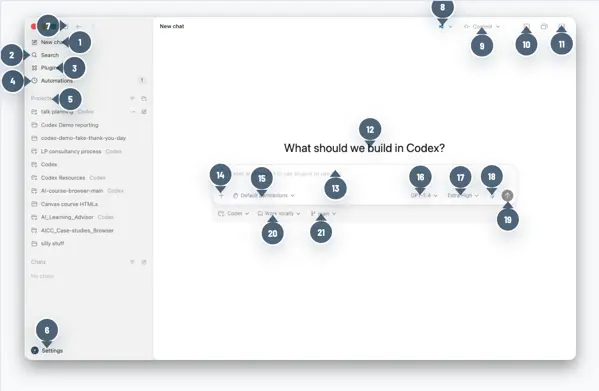
Left Sidebar
1. New Chat Opens a blank conversation thread with Codex. Use this to start a fresh task or project.
2. Search Search across your existing Codex threads and conversation history.
3. Plugins Access and manage installed plugins that extend Codex's capabilities.
4. Automations View and configure automated workflows that Codex can run on your behalf.
5. Threads A list of your saved conversation threads. Each thread is named by the task or topic you were working on. Threads can be filtered or sorted using the icons at the top right of this panel.
6. Settings Access account settings, preferences, and configuration options at the bottom of the left sidebar.
Top Bar
7. Mini Window Toggle Opens Codex in a smaller, floating window — useful for keeping Codex visible alongside other applications without taking up a full screen.
8. Open in Editor Opens your current Codex conversation directly in your code editor (e.g. VS Code). The editor that appears depends on which compatible editors you have installed.
9. Commit Button (Git repositories only) When working within a Git repository, this button gives you access to version control actions, including:
- Creating a push request
- Committing your changes
- Creating a pull request
- Creating a new branch
10. Open in Terminal Opens a terminal session in the context of your current working environment, allowing you to run commands alongside your Codex session.
11. Diff Panel Displays a view of all uncommitted code changes made during your Codex session, so you can review what has been modified before committing.
Main Canvas
12. Welcome Prompt Dropdown that allows you to select the environment you want to work in.
Input Bar
13. Message Input Field The main text box where you type your prompt or question. Codex supports the following shortcuts within the input field:
@— attach or reference files/— access slash commands#— reference tasks
14. Attach / Add Button (+) Click to attach files, images, or other assets to your message.
15. Model Selector A dropdown to select the underlying AI model powering your session (e.g. GPT-5.3-Codex). Different models may have different capabilities or speed/quality trade-offs.
16. Reasoning Level Selector Controls the depth of reasoning Codex applies to your request (e.g. "Medium"). Options typically range from low to high, with higher levels producing more thorough but slower responses.
17. Microphone Button Click to use voice input — speak your prompt instead of typing it.
18. Send Button Submits your message to Codex. The button is highlighted when your message is ready to send.
19. Local Toggle Indicates whether Codex is operating in a local or cloud-connected context. Relevant for tasks involving local files or environments.
20. Default Permissions Shows the current permission level for the session, controlling what Codex is allowed to access or modify. Click to review or change permissions.
21. Branch Indicator (bottom right of input bar) Displays the currently active git branch (e.g. "main"). Codex is aware of your repository context, and this shows which branch it is working against.
Further guidance
These resources provide a more detailed walkthrough and practical guidance for using Codex effectively.