Google AI Tools | AI Competency Centre

Google AI Tools
The AI Competency Centre site has now moved to OxIntranet. Pages on this site will no longer be maintained but will remain available until November during the transition period.
If you are a member of University staff, please visit Generative AI support (SSO required) for all the latest information about using generative AI at Oxford. Resources for current students can be found on OxWeb. If you are visiting from outside of the University, we are currently refreshing the AI content on our main website.
Google offers a variety of AI tools which are supported for use at the University of Oxford, including Gemini, Gemini Notebook, and Google AI Studio. This page covers all of these tools and their features. In summary at Oxford you can access:
Gemini: Google's main, multimodal AI assistant for generating text, images, and code.
Gemini Notebook: A personalised AI research assistant that analyses uploaded documents, notes, and sources.
Google AI Studio: A prototyping environment for developers to build apps with Gemini.
Google has put together some resources and courses to introduce beginners to their tools. We recommend starting with the 'Getting started with Google AI in Higher Education' course which will help to explain what Google AI is and show practical ways it can support higher education practices.
🔗Getting started with Google AI in Higher Education
Note on Google Colab: Whilst users may assume Colab is the same as all of the Google Workspace tools they should note it is not covered by the ISO27001 security certification that the University has verified for Google Workspace, and it is also subject to different terms and conditions on data privacy than Google Workspace. In particular, the terms of use for Colab may allow use of data for AI model training. Anybody using Colab needs to be aware of this and adhere to standard University policies on data protection and privacy. If you wish to access Colab, you can request this from the Google Services team in IT Services.
Data residency is outside the EEA but adequate protection is recognised by the European Commission. When considering using this tool for sensitive or specific cases we recommend you speak to your local data privacy officer.
Accessing Google AI tools
You can use your SSO email (abcd1234@ox.ac.uk) to sign in to the University of Oxford's Google Workspace.
To sign in, follow these instructions:
- Open the page for the tool you wish to use (either gemini.google.com/, notebooklm.google.com/, or aistudio.google.com/)
- Click the Sign in button.
- Enter your Single Sign On (SSO) email address in the format `abcd1234@ox.ac.uk` and press Next. (*Please note that using a department alias such as `@it.ox.ac.uk` will not work*).
- You will be directed to the standard University SSO log-in process.
Note: Signing in with a personal Google account is not protected by enterprise agreements. This includes Pro accounts provided for free by Google as an offer to students. Confidential University data should not be used in personal accounts.
Access to Google AI tools through the University of Oxford Google Workspace will end on the same day that your role or study finishes. This may differ from your University card expiry date.
Before your final day, you should copy any content you wish to retain. This includes:
- Reviewing chat history and copying relevant material
- Generating summaries of key conversations
- Creating reusable prompts to replicate important outputs
- Saving custom instructions and stored memories
If you are moving roles internally, or taking time out of your studies, access to Google AI tools stops with the end of your current contract or studies. Access will resume with the start of your new role or course, but your account history may not be retained. You should therefore follow the instructions above to ensure unplanned loss of history.
Having trouble with your Google Gemini or Gemini Notebook?
Consider first seeking support from the company whose product you're using:
Google Gemini: Google's Gemini Apps Help page offers various pieces of advice and support for using Gemini.
Gemini Notebook: Google’s Gemini Notebook Help page covers help topics from getting started to troubleshooting Gemini Notebook.
If your query is about whether an outage is affecting your connection to a particular tool, try the Google Status page for Google Gemini and Gemini NotebookFor simple queries regarding University-supported GenAI tools and support, use the AI Competency Centre chatbot to be directed to relevant information.
For support accessing AI services, contact the Central IT Service Desk.
Purchasing Gemini Pro
Following a successful pilot, Gemini Pro will be available to University staff and students through our data-protected workspace at a cost of about £170 + VAT per year. This is costed pro-rata from the date of request to 11 February 2027. To request purchasing Gemini Pro, please follow the steps below.
Requesting a Gemini Pro licence
Contact Getech: The University has nominated Getech as the sole supplier for Gemini Pro licences. To request licences, you must contact team@getecheducation.com requesting a quote. Please specify the exact number of licences required. Getech will calculate the pro-rata cost and return a formal quote.
Raise a PO: Once the quote has been approved by your budget holder, you must raise a Purchase Order (PO) as per your local purchasing procedures.
Provisioning: Getech will provision the licences directly within 48 hours of the order being confirmed. You must ensure they have your Single Sign-On (SSO) details and those of anyone else you are purchasing a licence for.
Should you require any support with your Pro licence or wish to reassign this at any point, please contact Getech directly at team@getecheducation.com.
Please note: All users on the University Google Workspace currently only have 500MB of Google Drive space. When you buy a Gemini Pro licence, this does not come with any additional storage and does not include access to developer or cloud-based tools such as Gemini Code Assist, Gemini CLI, Google Antigravity, or Google Cloud Platform. Should you wish to acquire more Google Drive storage, you can contact the IT Service Desk, ask for more Google Drive storage, and advise that the ticket is for the attention of the EDMS team.
Note on Google Colab: Google Colab is provided directly via some departments as it is a paid for licence, and also as part of the Gemini Pro licence. Whilst users may assume Colab is the same as all of the Google Workspace tools they should note it is not covered by the ISO27001 security certification that the University has verified for Google Workspace, and it is also subject to different terms and conditions on data privacy than Google Workspace. In particular, the terms of use for Colab may allow use of data for AI model training. Anybody purchasing a licence for Colab needs to be aware of this and adhere to standard University policies on data protection and privacy.
How to check if you have Gemini Pro
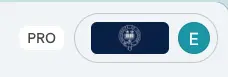
If you have purchased Gemini Pro, a “PRO” label will appear next to your name in the top-right corner when you sign in to gemini.google.com/ using your University SSO.
If you do not see the “PRO” label, your account is using the standard version of Gemini.
If you have recently purchased Pro, please allow up to two working weeks for your access to be provisioned.
Google Gemini
Google Gemini provides AI assistance both as a standalone tool and integrated within Google Workspace applications.
What Gemini Does Best
- Educational content creation - Lesson plans, curriculum development
- Grant proposal drafting - Academic and research funding applications
- Document and email summarisation - Processes Google Workspace content
- Research acceleration - Integrates with NotebookLM for knowledge sharing
- Administrative tasks - Streamlines routine educational workflows
Critical Account Risk
High risk of user error: Many users are logged into both personal Gmail and University Google accounts simultaneously. Using Gemini through a personal account provides no protection and must not be used for University data.
Chat deletion: At present, chat deletion is not available within Oxford University Gemini accounts. This means that once a conversation has been created, it cannot be removed from your chat history.
If you need to work with content that should not be retained, consider using another Oxford supported AI tool with chat deletion (for example, ChatGPT Edu).
Using Google Gemini
Once you have logged in to Google Gemini, you may wish to learn more about the interface and how to use the tool.
We also offer the following training specifically for Google Gemini:
This tab is for users that have no experience or limited experience with Gemini. It covers basic information on the structure of the Gemini interface.
This powerful tool offers revolutionary support for work cases spanning administration, research, education, and beyond. Its chief limitation is user imagination. It is one of the jobs of the AI Competency Centre to help new and experienced users alike explore these possibilities.
Fundamentally, Gemini works by a call-and-response kind of conversational interface. The user sends a request or statement to the AI (called a “prompt”) and then the AI responds to that prompt in a way that resembles a text message conversation.
Gemini Chat Interface
The main chat interface has several major parts. The key elements are labelled below:
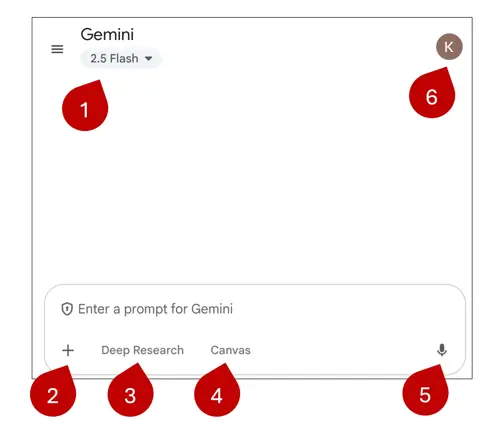
- Enter a prompt for Gemini. This is where you click to type in your message and “talk” to the AI.
- Attach files. You can upload upload directly from your machine or pull them in from Google Drive.
- Tools. Gemini offers a variety of tools that can enhance the conversation with the AI in interesting ways.
- Guided Learning is a feature that facilitates step-by-step learning through guided prompts, hints, and knowledge checks rather than direct answers.
- Deep Research. Deep Research in Gemini functions as an AI-powered research tool. It receives a user-defined prompt and then formulates a multi-step research plan.
- Create an Image. Image creation is a function that lets you ask the AI for a picture and it will create one for you.
- Canvas. Canvas in Gemini is an interactive workspace for document and code creation. It enables real-time collaboration with the Gemini AI. Key functions include generating and refining content drafts. For coding, it generates snippets (e.g., HTML, Python), provides live web app previews, and aids debugging. Content can be exported to Google Docs.
- Model Switcher. This allows you to select the AI’s "brain" for the task: Fast is for near-instant everyday tasks, Thinking provides a reasoning layer to double-check logic for tricky problems, and Pro is the most advanced model for heavy-duty coding, math, and complex analysis.
- Microphone. The microphone function in Gemini allows for voice input and interaction. It enables users to speak their queries or commands directly to the AI.
Gemini Extended Interface
Beyond the chat window, Gemini offers additional functionality across the platform.
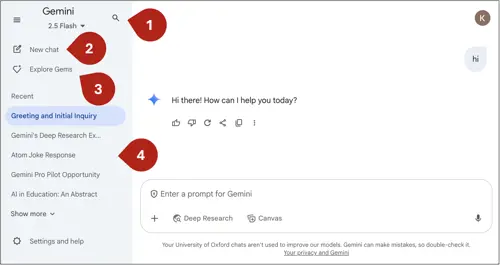
- Start New chat. This button allows you to start a new conversation from scratch.
- Search chat history. This function allows you to search through all of your past conversations at once, so that you can find all the conversations that relate to a specific topic. This can be super handy if you recall having a conversation about a certain topic, but you can't find it in your chat history.
- My Stuff. This is your personal organized library where Gemini stores all your generated media, research reports, and Canvas projects, allowing you to quickly access and resume previous work.
- Pinned Gems. Gems are ready-to-go conversations with the AI that are already primed with context and background information. You can access prebuilt Gems or create them yourself.
- Chat History. This section catalogues a list of your past conversations with the AI. These will be automatically named based on the content of what you have discussed with the AI.
- Account Information. Here you can click to find information about your account and sign out.
Google Gemini Features
The features available in the University of Oxford Google workspace will be subject to internal governance based on business need and may not be the same as those in consumer versions.
Google Gemini has usage limits in place. This means that the number of prompts, conversations and usage of certain features may be capped. Find out more about usage limits.
| Feature | Standard usage limits | Usage limits with Gemini Pro |
| Model access | Gemini 3 Flash (General access) Gemini 3 Pro & 3 Flash Thinking Up to 100 prompts per day |
Prioritized access to Gemini 3 Pro and 3 Flash Thinking |
| Context window | Up to 32,000 tokens | Up to 1 million tokens |
| Deep Research | Up to 5 reports per month Powered by Gemini 3 Flash |
Up to 20 reports per day Powered by Gemini 3 Flash or Gemini 3 Pro |
| Image generation | Nano Banana: up to 100 images per day Nano Banana Pro: up to 3 images per day |
Nano Banana: up to 1,000 images per day Nano Banana Pro: up to 100 images per day |
| Video generation | Not available | Up to 3 videos per day Using Veo 3 Fast (preview) |
| Workspace integration | Limited | Gemini in Google workspace |
Models
Within Gemini, users can select between different performance modes depending on task complexity and required depth:
- Fast – Optimised for quick responses and everyday tasks.
- Thinking – Designed for more complex problem-solving and structured reasoning.
- Pro – Allocates more processing time for advanced mathematics, coding, and in-depth analysis
Gems
Gems are specialised versions of Gemini that you can configure for a specific course, role or workflow. You set the instructions, upload relevant files, and choose which tools it can use - creating an assistant that behaves exactly the way you need.
Gems can be shared with individual users within the Oxford workspace, or more widely across the Oxford University Google Workspace via a link.
To enable sharing of Gems in Gemini, you need to navigate to privacy settings in Google Drive and ensure Workspace Smart Features are toggled on.
You can get started with Google’s premade Gems like ‘Learning coach’, ‘Career guide’, and ‘Brainstormer’.
Gemini Canvas
Gemini Canvas is an interactive workspace for drafting, refining, and developing content or code in real time. It supports structured editing, iteration, and export to tools such as Google Docs.
Deep Research
An agentic feature in Gemini that can search across hundreds of websites, synthesise findings, and generate structured, multi-page reports with citations.
Guided Learning
Built in collaboration with educators, cognitive scientists, and learning experts, Guided Learning is an interactive learning mode in Gemini that uses probing, open-ended questions and step-by-step explanations to foster deeper understanding rather than just providing answers.
Video Creation
Create videos in Gemini using Google’s Veo generative video model to transform text or image prompts into short, high-definition cinematic clips. it coverts prompts into 8 second video clips.
Image Creation
Create infographics and images in Gemini using the Gemini 3 Pro Image model to transform text and data into clear, structured visual summaries or eye catching images.
Gemini Notebook
Gemini Notebook is an AI-powered research and note-taking assistant grounded exclusively in the sources you upload. It is designed to help academics, researchers, and students organise and analyse large bodies of knowledge. It answers questions and generates outputs, such as summaries, lesson plans, study guides, discussion questions, and quizzes, with in-line citations for accuracy. It supports over 80 languages and can work across multilingual source materials.
What Gemini Notebook Does Best
Source-grounded summarisation - Generates summaries directly from uploaded PDFs, text, videos, or websites
Knowledge synthesis - Builds structured overviews from multiple source documents
Context-aware Q&A - Answers questions strictly based on your uploaded material
Collaboration - Allows shared projects with colleagues across the Oxford Google Workspace
Citations - Provides inline source references for all generated content
Critical Account Risk
High risk of user error: Many users are logged into both personal Gmail and University Google accounts simultaneously. Using Gemini Notebook through a personal account provides no protection and must not be used for University data.
Using Gemini Notebook
Once you have logged in to Gemini Notebook, you may wish to learn more about the interface and how to use the tool. Below, we have created various guides to assist with this.
This tab covers basic information on how the tool is structured and how to begin using it.
Gemini Notebook is an AI-powered research and synthesis environment developed by Google. It enables users to upload documents, extract insights, and generate tailored summaries, outlines, and explanations. It is designed to support work in research, administration, teaching, and creative writing. The core value of Gemini Notebook is its ability to help users explore and reason through their own materials efficiently.
Gemini Notebook Homepage Interface
This is the landing page when you first open Gemini Notebook:
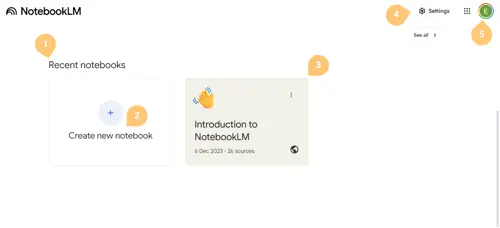
Recent Notebooks: Displays notebooks you’ve recently opened or worked on.
Create New Notebook: A button with a “+” symbol to start a new notebook from scratch.
Notebook Cards: Each card represents an existing notebook. It shows the title, date last edited, and number of uploaded sources.
Settings Icon: Located at the top right, it opens account and app preferences.
Account Icon: Displays your Google account. Click to switch or sign out.
Notebook Interface
When a notebook is first created, the workspace is divided into three main panels:
Sources Panel
Chat Panel
Studio Panel
These elements and others are annotated below:
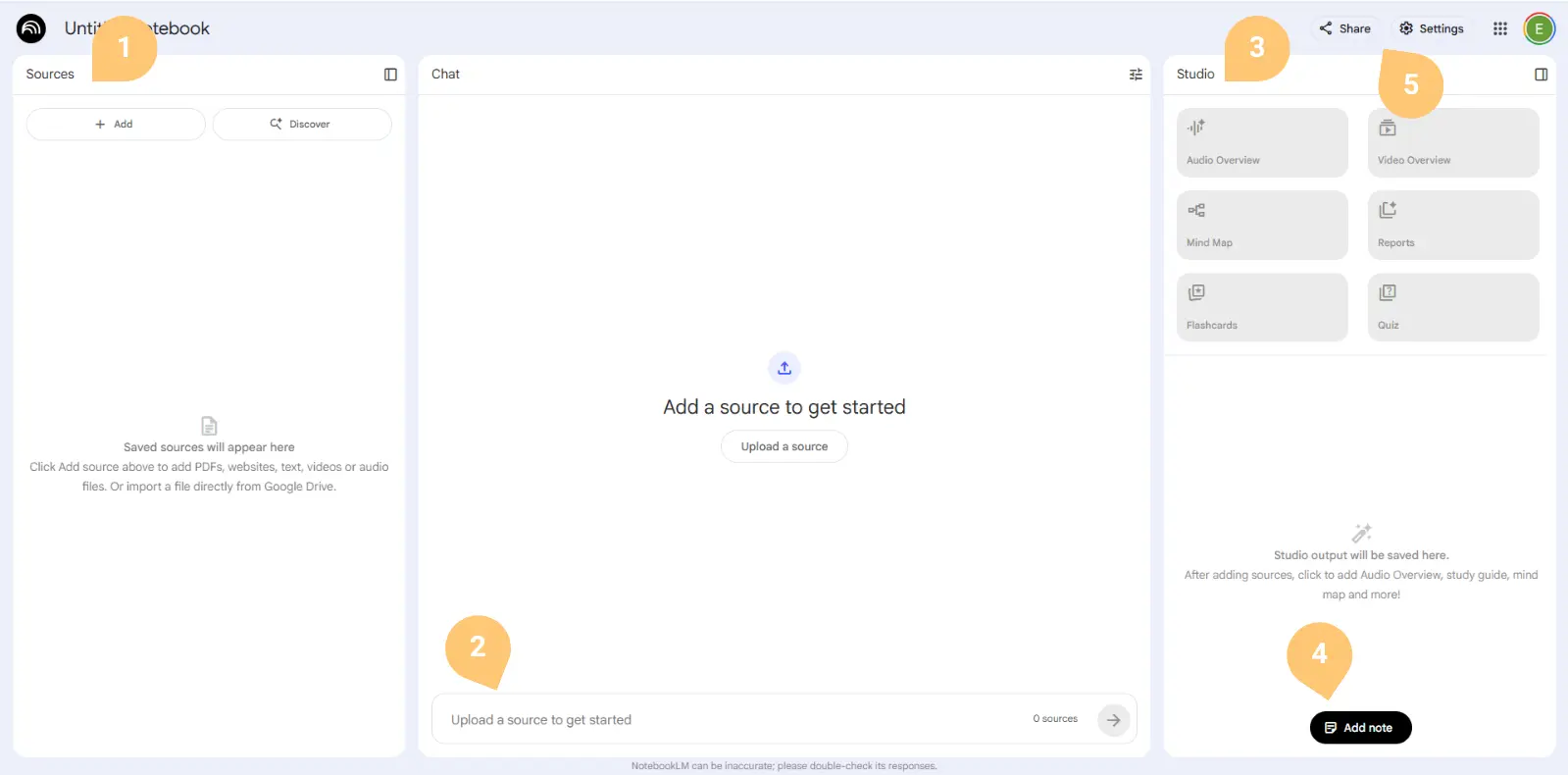
Sources Panel (left): Click Add or Discover to upload PDFs, text files, websites, videos, or audio. This is where your reference materials live.
Chat Panel (centre): Displays the prompt area and responses. You’ll see “Add a source to get started” until sources are uploaded.
Studio Panel (right): Offers AI-powered tools such as Audio Overview, Video Overview, Mind Map, Reports, Flashcards, and Quiz—all generated based on your sources.
Add Note Button (bottom right): Lets you record personal reflections, summaries, or follow-up thoughts from AI responses.
Settings and Share: Top-right controls to rename, share, or adjust notebook settings.
For users who are already experienced with generative AI and want more advanced onboarding to Gemini, we have collected the following resources.
Gemini Notebook features
Gemini Notebook has usage limits in place. This means that the number of prompts, conversations and usage of certain features may be capped. Find out more about usage limits.
Feature | Standard usage limits | Usage limits with Gemini Pro |
Notebooks | Up to 100 notebooks | Up to 500 notebooks |
Sources | Up to 50 sources per notebook | Up to 300 sources per notebook |
Queries | Up to 50 daily chat queries | Up to 500 daily chat queries |
Deep Research | Deep Research: 10 per month | Deep Research: 20 per day |
Audio overviews | Audio overviews: 3 per day | Audio overviews: 20 per day |
Video overviews | Video overviews: 3 per day | Video overviews: 20 per day |
Gemini Notebook Studio
Studio is Gemini Notebook’s creation space for turning your uploaded materials into a range of outputs. From a single notebook, you can generate audio and video overviews, mind maps, structured reports, and learning materials such as quizzes and flashcards — all based only on the sources you provide.
Mind Maps
Mind Maps create an interactive visual overview of the key concepts, themes, and entities across all sources in your notebook. They surface relationships between ideas and allow you to explore how topics connect across multiple documents.
Selecting any node reveals how that concept is discussed within your uploaded materials, helping users trace themes, compare perspectives, and identify patterns across sources.
Audio Overviews
Audio Overviews convert your uploaded materials into a conversational, podcast-style summary voiced by two AI hosts. NotebookLM synthesises notes, readings, research, webpages, or videos into an accessible audio format.
Using the customise option, you can direct the focus of the discussion to prioritise specific themes, questions, or sections of your sources.
Video Overviews
Video Overviews transform your uploaded sources into a short, illustrated video summary presented by AI hosts. They provide a visual way to review key ideas and quickly grasp the main points of longer materials.
NotebookLM can generate a video overview from lesson plans, research papers, articles, or other uploaded content, helping to communicate complex material in a concise, accessible format.
Reports
Reports transform your uploaded sources into structured, functional documents. You can generate formats such as briefing documents, study guides, literature reviews, blog posts, research proposals, timelines, or fully custom outputs.
Gemini Notebook synthesises key themes, evidence, and insights from your materials into a coherent draft, helping you move from reading and research to usable outputs more efficiently.
Flashcards and Quizzes
Flashcards and quizzes generate revision materials directly from your uploaded sources. They extract key terms, concepts, and questions to support retrieval practice and knowledge checks.
Infographics
Infographics transform your uploaded documents into clear, structured visual summaries. They synthesise key points, data, and relationships into maps, timelines, flowcharts, or comparative layouts.
All visuals are generated solely from your notebook sources, supporting accuracy while helping to communicate complex material in a concise, accessible format.
Slide decks
Slide decks turn your sources into a presentation which can be presented instantly within Gemini Notebook or shared as a PDF.
Google AI Studio
Google AI Studio is a web-based development environment for working directly with Google’s Gemini models.
It provides a structured space to design, test and refine prompts, explore model behaviour, and prepare AI features for integration into applications.
AI Studio includes a Playground for testing prompts and model settings, and a Build environment for preparing API integrations and exporting code.
What you can do
With Google AI Studio, you can:
- Access Gemini models for text, code, reasoning and multimodal tasks
- Experiment with prompt design and structured outputs
- Adjust model settings such as temperature and response length
- Generate and manage API keys for development use
- Export code for integration into applications
Who it is for
Google AI Studio is primarily intended for developers, technical teams and researchers who require direct control over model configuration and testing.
Please note: Any programmatic access to a Google service via an API requires a Google Cloud Platform (GCP) project, including Gemini API. For example, if you like to explore generative AI using Google AI Studio and the Gemini API, or build location-based applications using the Google Maps API, you will need an active GCP project to generate your API keys, manage credentials, and track your billing. To set up GCP project, please contact Cloud and Storage Service for details.