ChatGPT Edu | AI Competency Centre

ChatGPT Edu
The AI Competency Centre site has now moved to OxIntranet. Pages on this site will no longer be maintained but will remain available until November during the transition period.
If you are a member of University staff, please visit Generative AI support (SSO required) for all the latest information about using generative AI at Oxford. Resources for current students can be found on OxWeb. If you are visiting from outside of the University, we are currently refreshing the AI content on our main website.
Table of contents:
ChatGPT Edu is Oxford's enterprise version of OpenAI's leading AI model, designed for sophisticated reasoning, content creation, and analysis.
This page features information about ChatGPT Classic, information about ChatGPT's agentic capabilities is available on the Codex and ChatGPT work page.
What ChatGPT Edu Does Best
Advanced reasoning and analysis - Handles complex problem-solving tasks
Document drafting and editing - Creates professional content from scratch
Code writing and debugging - Supports multiple programming languages
Live web browsing - Incorporates current information into responses
Text summarisation - Processes lengthy, complex documents
When logging in with an SSO, all current staff and students will join the University of Oxford ChatGPT Edu workspace. The features available in the University of Oxford workspace will be subject to internal governance based on business need and may not be the same as those in consumer versions.
Why you should use ChatGPT Edu
Saving money. ChatGPT Edu accounts are being made available free at point of use, across the University and colleges, as part of an inclusive offer
Better security. You can access ChatGPT Edu via your SSO, which gives you more security and convenience than either the Plus or Teams licence.
Share your GPTs and chats privately with others in the Oxford workspace or with the whole Oxford workspace all at once. We have created an Oxford GPT Library to showcase some of the custom GPTs created and shared within the University's workspace.
Enhanced data protection: Unlike the free and Plus versions (where you have to manually opt out of allowing your data to be used to train OpenAI’s data models), data you input into ChatGPT Edu is not shared to train OpenAI's models by default. This means you maintain full ownership of all your inputs and outputs, which is important when working with research data or sensitive university information. Your interactions in ChatGPT Edu are private and accessible only to you, in a similar way to how you use your University email account.
Security assessment. Of all OpenAI generative AI tool offerings, only ChatGPT Edu is covered by InfoSec’s third-party security assessment (TPSA). This is the same security assessment that covers all use of Microsoft 365 across the University.
Data residency is in the US. When considering using this tool for sensitive or specific cases we recommend you speak to your local data privacy officer.
Accessing ChatGPT Edu
All current staff and students at the University of Oxford have access to ChatGPT Edu. To log in to your supported account, follow the below process:
- Go to https://chatgpt.com/
- Click the Log in button to begin the process.
- Enter your Single Sign-On (SSO) email address in the format abcd1234@ox.ac.uk and press Continue. (Please note that using a department alias such as @it.ox.ac.uk will not work).
- Choose Oxford University as your option
- You will be directed to the standard University SSO log-in process.
- You will see a few onboarding pop ups and then you can start using ChatGPT.
Verify protection - Look for "Oxford University" branding in the interface
Warning: If you don't see Oxford branding, you're in the public version - do not enter any University or otherwise confidential data. Personal AI accounts, or accounts logged into using anything other than the University’s SSO credentials, should not be used for University work or study.
Note: ChatGPT does not log you out automatically between each session. If you are using a public or shared device, you should log out after each use.
- Ensure you're using your SSO email (abcd1234@ox.ac.uk) and not your department email
- Try logging in via an incognito tab (Ctrl + Shift + N).
- Check OpenAI’s status page for outages.
- If issues persist, contact OpenAI Help Center
Access to ChatGPT Edu will end on the same day that your role or study finishes. This may differ from your University card expiry date.
Before your final day, you should copy any content you wish to retain. This includes:
- Reviewing chat history and copying relevant material
- Generating summaries of key conversations
- Creating reusable prompts to replicate important outputs
- Saving custom instructions and stored memories
If you are moving roles internally, or taking time out of your studies, access to ChatGPT Edu stops with the end of your current contract or studies. Access will resume with the start of your new role or course, but your account history may not be retained. You should therefore follow the instructions above to ensure unplanned loss of history.
Having trouble with your ChatGPT Edu account?
- Consider first seeking support from the company whose product you're using:
ChatGPT Edu: For access and activation queries, please use the OpenAI help portal. You can use the chat at the bottom of the page to ask questions and connect with support by clicking on the Message tab. If you are unable to resolve your issue through the help portal, then you should contact OpenAI support directly by email at support@OpenAI.com.
If your query is about whether an outage is affecting your connection to a particular tool, try the OpenAI Status page. - For simple queries regarding University-supported GenAI tools and support, use the AI Competency Centre chatbot to be directed to relevant information.
- For support accessing AI services, contact the Central IT Service Desk.
ChatGPT and Microsoft Copilot service statuses are now visible on the University's IT Services status page, under Communication and Collaboration ➡️ AI Tools. If you are struggling to access one of these services, please check this page for tool disruption.
Using ChatGPT Edu
Once you are logged in to ChatGPT Edu, the following guides are available to help you navigate the interface and learn how to make this tool work for you. Full details of all the features in the University of Oxford ChatGPT Edu workspace can be found further down.
We also offer the following training specifically for ChatGPT Edu:
This tab covers basic information on the structure of the ChatGPT interface.
This powerful tool offers revolutionary support for work cases spanning administration, research, education, and beyond. Its chief limitation is user imagination. It is one of the jobs of the AI and Machine Learning Competency Centre to help new and experienced users alike explore these possibilities.
Fundamentally, ChatGPT works by a call-and-response kind of conversational interface. The user sends a request or statement to the AI (called a “prompt”) and then the AI responds to that prompt in a way that resembles a text message conversation.
ChatGPT Chat Interface
The main chat interface has several major parts. The most important is labeled “Message ChatGPT”. This is where you click to type in your message and “talk” to the AI.
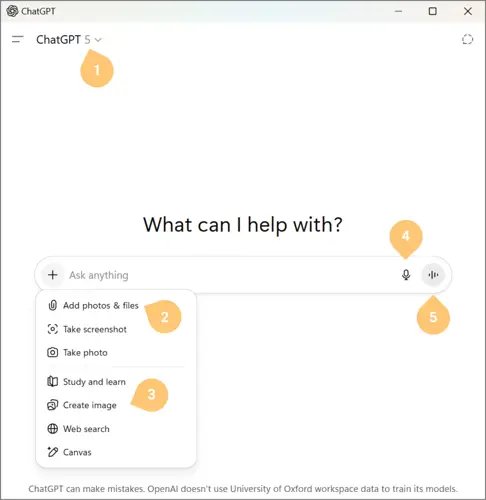
The other five elements are labeled below:
- Switch which “model” you want to use: Think of the *model* as the particular AI brain that you want to talk to: Instant for fast, everyday responses, Thinking for more complex or multi-step questions, and Pro for deeper, research-grade analysis.
- Attach files: You can upload upload directly from your machine or pull them in from OneDrive or Google Drive.
- Choose tools: ChatGPT offers a variety of tools that can enhance the conversation with the AI in interesting ways.
- Study & Learn is a feature that facilitates step-by-step learning through guided prompts, hints, and knowledge checks rather than direct answers.
- Image creation is a function that lets you ask the AI for a picture and it will create one for you.
- Web Search is a function that allows ChatGPT to search the internet for information and links.
- Canvas is a tool that lets you edit text that the AI generates. This is useful if you are drafting content like a letter where you may want the AI to edit specific parts, sentences, or words without rewriting the whole document.
- Dictate is a function that allows you to dictate your prompt rather than type it out
- Start Advanced Voice Mode: This is a mode that allows the user to speak directly to the AI and receive responses via speech. You will know that Advanced Voice Mode is activated because a blue circle will appear on the screen. The transcription of your conversation will be available in the chat after you exit out of this mode.
ChatGPT Extended Interface
Beyond the chat window, ChatGPT offers additional functionality across the platform.
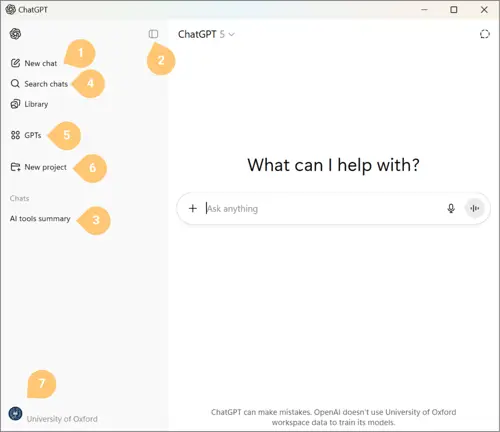
- Start New chat. This button allows you to start a new conversation from scratch.
- Hide/Open Chat History Sidebar. This button allows you to hide the entire left-hand sidebar to focus exclusively on the conversation that you are currently having with the AI.
- Chat history. This section catalogues a list of your past conversations with the AI. ChatGPT will automatically name these conversations based on the content of what you have discussed with the AI. If you wish to rename them, hover over the name and then click the three dots which will reveal options to rename and archive that conversation.
- Search chat history. This function allows you to search through all of your past conversations at once, so that you can find all the conversations that relate to a specific topic. This can be super handy if you recall having a conversation about a certain topic, but you can't find it in your chat history.
- Explore GPTs. Custom GPTs are ready-to-go conversations with the AI that are already primed with context and background information. Once you initiate one of these custom GPTs, you'll be able to hit the ground running to get useful responses from the AI that may have otherwise taken a while to elicit in a normal conversation window.
- Projects. This feature lets you organize related chats, files, and data in one workspace, keeping everything for a specific task or topic together.
- Settings. Settings contain a lot of useful features that are applicable to more advanced applications.
ChatGPT Keyboard Shortcuts
- Type / in chat to quickly choose tools
- Type @ in chat to call a recently used GPT
- Type Cmd/Ctrl + / to see a list of other keyboard shortcuts
If you are a brand new user of ChatGPT, you many find the following videos useful. These are recordings offered by OpenAI (the company behind ChatGPT) to onboard new users.
ChatGPT 101
ChatGPT 102
For new users who want to get onboarded quickly, this module on Canvas offer a step by step overview of basic concepts and prompting practices.
Putting AI to Work series
This section offers a series of videos that are focused on how to use ChatGPT in the context of work. If you want to skip over the background knowledge and jump right into an overview of how to use ChatGPT Edu in your workflow, check out these videos.
🔗 Put AI to Work: Lessons from Hundreds of Successful Deployments
The context window defines how much information a model can consider at one time.This includes your prompts, responses, uploaded files, and system-level instructions (such as custom instructions and memory). This is measured in tokens. Tokens are units of text, so they do not map directly to word counts. You can estimate the number of tokens in a document using the OpenAI Tokenizer.
In ChatGPT Edu, the context window depends on the model in use: GPT-5.5 has a maximum context window of 1 million tokens (approximately 1,500 to 3,000 pages of standard text).
For file uploads, not all content is included in the active context. In practice, approximately 110k tokens from uploaded files are available for the model to work with at any given time. For more detail, see: Optimising file uploads in ChatGPT.
Unlimited features
The following features within Oxford's ChatGPT Edu workspace are those which can be used without any usage limits - there may be some discrepancies between what is enabled for staff and what is enabled for students. The unlimited features included in ChatGPT Edu at Oxford are:
ChatGPT models:
These models are available to all staff and students.
GPT-5.6 Sol / GPT-5.5 Instant
GPT-5.3 Instant (legacy)
GPT-5-mini (legacy)
GPT-5 Thinking mini (automatically triggered by GPT-5.5 for more difficult tasks but cannot be selected by the user)
Specific tools within ChatGPT Edu:
You can select these tools in the drop down menu or by typing / in the chat but you can also trigger them by asking in the prompt (for example, "generate an image of" or "search the web for...").
Web search
The model powering ChatGPT Edu can also call tools that cannot be selected in the interface but can be triggered by asking in the prompt. They are:
Memories - you can say “remember this about me” or “what do you remember about me?” or “forget this memory” - sometimes the model will choose to call the memories into its context when it think it may be relevant
Code Interpreter - this is when the model writes and runs computer code to generate part of the answer (for instance, when you upload a spreadsheet and ask the model to analyze the data). Note: You can enable the Code Interpreter tool as a capability in custom GPTs.
Modes of interaction available to the user
Dictate - speak about what you want included in the prompt (represented by the microphone symbol)
Study mode (this mode changes the behaviour of the model and is equivalent to changing the prompt)
Notable ChatGPT Edu unlimited features
The Plugins feature in ChatGPT (formerly known as Connectors or Apps) allows ChatGPT to connect securely to third-party applications such as the Microsoft 365 suite so that you can search files, utilise live data, and reference this content directly in your ChatGPT chats.
Available Apps
Only specific Apps and Plugins have been made available in ChatGPT Edu. These have been approved following careful consideration by cross-divisional and college representatives on the University’s AI Governance Group. Apps approved for all staff to use as Plugins in ChatGPT Edu at Oxford appear in the 'Public' tab within the 'Plugins' screen, alongside those which are not approved - you will not be able to install anything not approved for use.
For any available Plugin connector, you will need to decide whether you wish to enable an App yourself, in your individual ChatGPT Edu account. Once enabled, ChatGPT will only be able to access files you already have permission to view.
To enable an App:
Log into ChatGPT Edu with your Single Sign-On (SSO)
Choose Plugins from the left-hand menu in your ChatGPT Edu
Select the + icon or 'Install' by the Plugin you'd like to connect to your ChatGPT
If prompted, use the 'Continue to...' button to complete the connection.
ChatGPT Apps currently available to staff are:
GitHub
Microsoft Calendar
Microsoft Outlook
Microsoft SharePoint (can search files in SharePoint folders; cannot search SharePoint pages or lists)
Microsoft Teams
Please note, the University reserves the right to withdraw Apps at any point, subject to ongoing monitoring of functionality, benefits, and security.
How to Use Apps and Plugins
Once connected, your Apps will appear in the tool selection menu (shown by the + symbol to the left-hand side of the chat input box) under the 'More' tab. You can ask ChatGPT to search files, fetch live data, or reference documents by asking it to use that specific app.
Remember: Apps can only access files that you have permission to access through your connected accounts. Microsoft Apps respect password-protected files and won’t access those.
Apps may access all files you have permissions for. This could include confidential and personal data. Guidance is available in the IT Help area of OxIntranet to help you manage sharing and permissions in Microsoft 365 to avoid accidental exposure of data.
If you find you have access to something you would not expect to, in the course of using App connectors in ChatGPT, please report this as soon as possible to the Data Breach team at data.breach@admin.ox.ac.uk.
If you are intending to input personal or restricted data to ChatGPT Edu chats directly, or you believe the prompt will draw from such data held in Microsoft 365 applications you have connected to your ChatGPT Edu account, you should seek advice from your local information governance lead, or the Information Compliance team at information.compliance@admin.ox.ac.uk. As with all other work, you must process outputs from ChatGPT Edu responsibly, respecting data classification and confidentiality at every stage of your use, and taking responsibility for how those outputs are stored and used.
Further advice and guidance
For information about using ChatGPT with personal or restricted data, and where your ChatGPT data is hosted, please see guidance on Using AI tools safely with University data.
You should also be mindful that AI tools may inaccurately summarise or synthesise data, and/or draw on outdated or inaccurate information from your Microsoft 365 applications. Always check the sources used by AI (which are usually linked to as part of responses generated within your chats), and refer to advice in the FAQs.
Projects are smart workspaces that keep everything related to a long‑running effort in one place. You can group together chats, upload reference files, and add custom instructions so ChatGPT remembers what matters and stays on‑topic. With memory, context, and flexible tools, they’re ideal for repeated and evolving work such as writing, research, planning, and more.
Projects can be shared with others within the Oxford ChatGPT Edu workspace to support collaboration via the share button. There are two different access options:
- Invite specific users to use the project directly (within the Oxford ChatGPT Edu workspace)
- Create a link only users with the link can use
Important: Unlike individual chats and custom GPTs, sharing a project makes all existing content within that project visible to others. This includes your previous prompts, responses, and any uploaded files.
View a short video overview of Projects created by OpenAI.
With a SSO-linked ChatGPT Edu account, you can:
Create and manage custom GPTs
Share custom GPTs to the University's workspace and externally (please refer to guidance on sharing custom GPTs)
Access custom GPTs shared in the University's workspace (this does not apply to third-party GPTs due to data concerns)
We have created an Oxford GPT Library to showcase some of the custom GPTs created and shared within the University's workspace.
Be aware that any data used to create a custom GPT may be accessed by the user of the GPT through a prompt. Therefore, any GPTs shared with other users should not include personal or confidential information, unless access is restricted to those who are authorised to view that information and that the level of sharing is proportionate to the intended use case.
Most custom GPTs are used privately by their creators but they can be shared by clicking on the Share button in the GPT editing interface and then choose the appropriate option under Access. There are three different access options:
Invite specific users to use the GPT directly (within the Oxford ChatGPT Edu workspace)
Create a link only users with the link can use
Publish to the GPT Store
All of the three options can be limited to Oxford University Edu account only or they can include external users.
View a short video overview of Custom GPTs created by OpenAI.
Tips and tricks for building Custom GPTs
These next resources are focused on offering tips and tricks for building Custom GPTs which are AI Bots in ChatGPT that are tailored to execute specific tasks with a relatively high degree of reliability.
🔗 Key Guidelines for Writing Instructions for Custom GPTs
Migrating custom GPTs
OpenAI is moving away from supporting custom GPTs. We therefore recommend reviewing any custom GPTs you currently use and considering whether they should be migrated to Skills within ChatGPT.
Migrating a custom GPT to a Skill
Skills are an alternative to custom GPTs for creating reusable instructions and workflows in ChatGPT.
When reviewing a custom GPT, consider whether you still need a separate GPT or whether its instructions and supporting files would work better as a Skill.
To migrate a custom GPT to a Skill:
Review the existing GPT: Identify the instructions, processes and reference materials that you want to keep.
Create a new Skill: Add the relevant instructions and supporting files to the Skill.
Test the Skill: Check that it produces the expected results and make any necessary changes.
Delete the original custom GPT once the Skill is working as expected.
A Skill is not a direct parallel to a custom GPT. A custom GPT can, for example, adjust the way ChatGPT communicates with you, including its tone of voice, whereas a Skill guides ChatGPT through a workflow or process. This means that some capabilities or configuration that are specific to custom GPTs may need to be replaced or adapted when creating a Skill.
Moving a custom GPT to another user
If another person needs to take over a custom GPT that you have created, you will need to manually migrate it to them.
Open the custom GPT and select Edit GPT.
Copy the GPT's name, description, instructions and conversation starters and share these with the new owner.
Locate the original files that were uploaded to the GPT as Knowledge and share these with the new owner. Make sure that you have permission to share the files.
Make a note of any additional capabilities or configuration used by the GPT.
The new owner should create a new custom GPT, add the copied configuration and upload the original Knowledge files.
Once the new GPT has been tested, delete the existing GPT.
This process creates a new GPT rather than transferring the existing GPT. Existing links to the original GPT will not point to the new version, so you will need to update any places where the original GPT has been shared.
Scheduled tasks allow you to schedule actions that ChatGPT can do on your behalf (for example, summarise the week’s top news from a page, create a daily French lesson).
To schedule a task, simply ask ChatGPT in a chat that you want to do this - describe the task and the frequency. You can schedule one-time or recurring tasks. Each task runs automatically based on the schedule you define. You can view, edit, or cancel your active tasks from the Tasks page.
Tasks are currently supported on ChatGPT Web, iOS, Android, and macOS. They are not supported on the Windows Desktop app. The Schedules page, which is used to view and manage all tasks, is currently available only on ChatGPT Web.
Skills are reusable workflows that help ChatGPT perform specific tasks more consistently. A skill can include instructions, examples, supporting resources, and code. Once installed, ChatGPT can automatically use relevant skills when they are helpful to your task.
What you can do
With Skills, you can:
- Create reusable workflows for common tasks and processes
- Standardise how ChatGPT performs recurring activities
- Share workflows with colleagues and teams
- Package instructions, examples, and resources into a single reusable tool
- Build skills that automate structured, multi-step tasks
- Install skills created by others within your workspace
Examples of skills include:
- Drafting reports using a standard format
- Analysing datasets using a predefined process
- Generating content that follows organisational guidelines
- Reviewing documents against specific criteria
- Creating summaries using a consistent methodology
Accessing Skills
You can access Skills directly within ChatGPT:
- Select your profile icon
- Select Skills
From the Skills page, you can view:
- Skills Created by you
- Skills Shared with you
All accounts include the skill-creator skill by default. When you ask ChatGPT to create, modify, or troubleshoot a skill, ChatGPT automatically uses this skill to help you.
Creating a Skill
There are several ways to create a skill:
Create a skill in conversation
Simply ask ChatGPT to create a skill. For example:
- “Create a skill that summarises research papers.”
- “Build a skill that reviews policy documents against our template.”
ChatGPT will guide you through the process and help you install the finished skill.
Use the Skills editor
- Open Skills
- Select New skill
- Select Create with editor
The editor allows you to build and manage skills directly.
Sharing Skills
You can share skills with colleagues within your workspace:
- Open Skills
- Select the more options menu (••) for the skill
- Select Share
- Choose individuals or groups, or copy a sharing link
You can control who has access to each skill and update permissions as needed.
Be aware that any data used to create a skill may be accessed by the user of the skill through a prompt. Therefore, any skills shared with other users should not include personal or confidential information, unless access is restricted to those who are authorised to view that information and that the level of sharing is proportionate to the intended use case.
Limited features
Some of ChatGPT’s features (5.6-Sol, Codex, Voice Mode, Video and Image Generation) use significant shared resources. Individual, monthly usage caps have been introduced for these more intensive features, to ensure fair access to them and to allow the University to consider offering further features and models such as Deep Research, GPT-5.6 Sol Pro, and expanded provision of GPT-5.6 Sol higher intelligence on an internal recharge basis, in response to demand.
Monthly limits on individual use apply to the following features:
GPT-5.6 Sol Medium and High intelligence
GPT-5.5 Medium and higher intelligence (legacy)
Image generation
Voice mode - have a live conversation (represented by the soundwaves symbol)
Video (within voice mode on mobile app only)
Access to OpenAI’s flagship GPT-5.5 Instant model in ChatGPT Edu remains uncapped for all users, as part of the University’s inclusive provision. These models feature auto-thinking capabilities so can both be used for complex queries.
The split of maximum usage of each model or feature can be seen on our ChatGPT Edu rate card.
What happens if I expect to regularly hit my monthly limit?
In response to demand, the University is now offering the option to purchase elevated access to ChatGPT Edu.
You can request access to higher limits in ChatGPT Edu through our Payment for Higher Limits form. Please note this is paid access with differing tiers of payment. You must have sufficient funding to cover this and the approval of your budget holder - please ensure you have your General Ledger code or Purchase Order number ready before filling out this form. This elevated access option also covers use of GPT 5.6 Sol Pro and Deep Research in ChatGPT Edu. Purchase can only be made through internal recharge and not by personal funds. Please note it may take up to 14 days to process your request.
Get in touch
If you have any questions or feedback about usage caps for these features within ChatGPT Edu, please contact aimlcompetencycentre@it.ox.ac.uk
Notable ChatGPT Edu limited features
When should I use GPT-5.5 Thinking?
GPT‑5.5 is the default model in ChatGPT Edu and is suitable for most everyday tasks such as drafting, brainstorming, summarising, and light editing. When starting a complex piece of work, start out with GPT-5.5 and if you notice that the task requires careful planning, multiple passes, and tracking many conditions, then move the conversation into GPT-5.5 Thinking.
GPT‑5.5 Thinking is an advanced option with weekly usage limits. Here are 5 examples of where using this more powerful model may be beneficial.
- Break a complex goal into sub‑tasks (e.g. Converting messy notes into a research proposal, then iteratively refining sections)
- Keep track of many constraints at once (e.g. Planning an event or programme that must satisfy logistical, budgetary and accessibility requirements)
- Reason across multiple documents or sources (e.g. Analysing survey responses and supplementary documents together to surface patterns and implications)
- Support complex decision‑making and trade‑offs (e.g. Evaluating different options for a new service, tool or workflow and articulating pros/cons, risks and implementation steps for each)
- Designing or reviewing multi‑criteria assessments (e.g. Checking exam questions or assignments for coverage of skills, difficulty balance, and inclusivity considerations)
In short: choose GPT‑5.5 Thinking for complexity, not simply for “more accurate” answers.
See more about when to use GPT-5.5 Thinking on our Canvas resource page.
What are Thinking models and which ones are available in ChatGPT
- Thinking models make a list of steps before you the answer (this may include doing a search or a calculation) and they take longer - they produce better results
- You can encounter two Thinking models in ChatGPT
- GPT-5 Thinking Mini - this is triggered automatically by GPT-5.5 Flagship or when you ask the Flagship model to "think harder". This is a less powerful model than GPT-5.5 Thinking but it is faster and does not count towards your usage limits.
- GPT-5.5 Thinking is more powerful than GPT-5 Thinking Mini but it takes longer and does count against usage limits. To use it, you have to select in the model selector at the top of the page. Note: You may have to manually switch to GPT-5.5 (Flagship) in a new chat after using GPT-5.5 Thinking.
Using the ChatGPT desktop app, you can access ChatGPT's agentic capabilities through ChatGPT Work and Codex.
These are Oxford's enterprise AI coding agents. Unlike ChatGPT, which responds to questions and generates text, ChatGPT Work and Codex can read, write, and execute work directly on your files and digital environment in response to plain text language.
To be granted access to the ChatGPT app at Oxford, you must complete the ChatGPT App Consent form.
Find out more on our dedicated Codex and ChatGPT Work page.
ChatGPT can be used directly within Microsoft Excel as an Add-In. This integration allows you to work with your spreadsheet data using natural language.
You may need to update your version of Excel to be able to access Add-Ins.
What you can do
Within Excel, ChatGPT can help you to:
- Generate and explain formulas
- Clean and transform datasets
- Summarise tables or ranges of data
- Identify patterns, trends, or anomalies
- Draft insights or commentary based on your data
Installing the add-in
To use ChatGPT in Excel, you will need to install the add-in from Microsoft AppSource (accessed via the Add-ins icon on the top menu):
- Open Microsoft Excel
- Select Add-ins from the top menu
- Select Find more Add-ins at Microsoft AppSource
- Search for ChatGPT
- Select the add-in and click Add
You may be prompted to sign in with your SSO account for ChatGPT Edu.
Accessing ChatGPT in Excel
Once installed, ChatGPT will appear as a panel within Excel:
- Open the Home or Add-ins tab
- Select ChatGPT
- A side panel will open where you can enter prompts
You can reference specific cells, ranges, or entire sheets in your prompts (for example, “Summarise the data in A1:D100”).
Further resources
ChatGPT can be used directly within Microsoft PowerPoint as an Add-In. This integration allows you to create, edit, and improve presentations whilst preserving the editable slide structure.
You may need to update your version of PowerPoint to be able to access Add-Ins.
What you can do
Within PowerPoint, ChatGPT can help you to:
- Create presentation drafts from notes, documents, spreadsheets, or other source materials
- Generate new slides and revise existing slides
- Summarise reports, research, or documents into presentation-ready content
- Adapt presentations for different audiences, such as executive, customer, or internal stakeholders
- Review a presentation’s structure, identify gaps, and suggest improvements
- Improve slide messaging, storytelling, and overall presentation flow
- Explain, summarise, or answer questions about an existing presentation
Installing the add-in
To use ChatGPT in PowerPoint, you will need to install the add-in from the Microsoft Add-ins store:
- Open Microsoft PowerPoint
- Select Add-ins from the top menu
- Select Find more Add-ins at Microsoft AppSource
- Search for ChatGPT
- Select the add-in and click Add
You may be prompted to sign in with your SSO account for ChatGPT Edu.
Accessing ChatGPT in PowerPoint
Once installed, ChatGPT will appear as a panel within PowerPoint:
- Open the Home tab
- Select ChatGPT
- A side panel will open where you can enter prompts
You can ask ChatGPT to create a new presentation, generate slides from source material, revise existing slides, or review a presentation for improvements